
Website Cloner
Create an authorized local copy of one web page or crawl a website for static export, with signed installation and checksum verification.
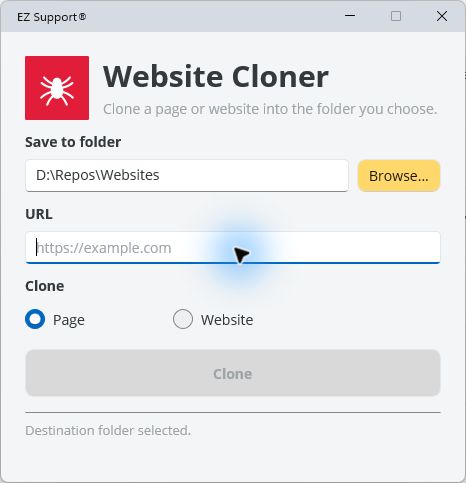
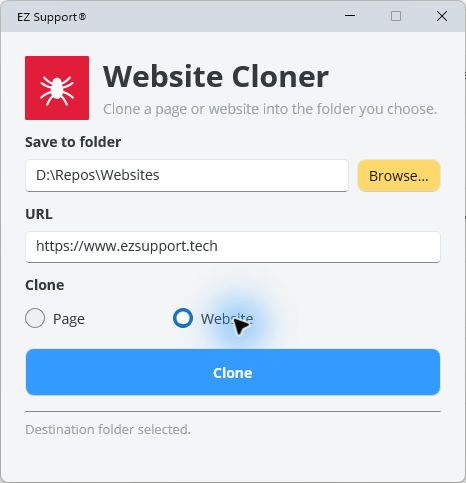
Create a local archive or static copy of a web page or website you own or have permission to copy. Choose Page for one address or use the default Hugo static website option to crawl linked pages and export a configured Hugo site into a folder you control.
Copying a public page is not automatically authorized. Confirm ownership, permission, site terms, copyright, privacy, robots guidance, and any contractual limits before starting a crawl. Website Cloner is provided without usage limitations in the utility itself and without warranty; those software terms do not grant rights to third-party content.
Install Website Cloner
The installer is digitally signed and includes the browser components required to clone modern websites.
To check for a new release, open Help in Website Cloner and select Check for updates.
See Website Cloner in action
Choose a destination, enter a web address, and keep the default Hugo static website option to export the complete website.
How to install
- Select Download installer.
- Open
WebsiteCloner.appinstallerwhen the download finishes. - Confirm that the publisher is EZ Support, then select Install.
If your browser downloads the manifest instead of opening App Installer, use the direct MSIX download on this page.
Verify the download
SHA-256 checksums are available in SHA256SUMS.txt.
Confirm that Windows identifies the publisher as EZ Support, then compare the downloaded file’s SHA-256 value with the published checksum when independent verification matters.
Check the exported copy
Website Cloner keeps its crawl, mirror, replay, and export work under artifacts/website-cloner in the selected destination. When the clone finishes, the configured Hugo content, layouts, static assets, and site configuration are published into that destination.
Every Hugo static website export includes launch_website.cmd. Run it to start the site with Hugo and open it in your default browser, then review the pages, links, images, scripts, forms, and other interactive behaviour you need. Modern sites can depend on server-side processing, authenticated sessions, APIs, dynamic routes, third-party services, or browser state that a static copy cannot reproduce.
Treat the result as an export to inspect, not proof that the original application can be redeployed unchanged. Before hosting a copy, confirm that sensitive data, private routes, tracking code, credentials, forms, and third-party content have not been carried into the output.
Limits and support boundary
Website structures and browser behaviour vary, so EZ Support does not promise a complete or deployable copy of every site. The utility is provided without warranty. Version 0.3.10 remembers the last source address, generates a direct Hugo launcher, converts captured internal and alias-domain links to clean Hugo routes, retries certificate-invalid IP-hosted assets through the source hostname, and preserves declarative Elementor markup when runtime DOM mutations would remove popups or duplicate navigation controls. Update checks are available through Help → Check for updates; the installer manifest does not schedule automatic weekly checks.